Revit Error Explained6 min read

Revit "Slightly off axis and may cause inaccuracies": find and straighten off-axis elements

What Revit measures when it shows this warning, where tiny angles come from, and how to fix them without moving half the model.

By(Architect & Revit API Developer)
Updated: October 2026Revit 2023 - 2027
Revit warning
Wall is slightly off axis and may cause inaccuracies.
Same warning for other elements
Line is slightly off axis and may cause inaccuracies.
Quick answer

Fastest fix: use Align (AL) to snap the element to an orthogonal grid or reference plane, or redraw it with angle snapping turned on. If the source is a traced CAD file, rotate or re-import the CAD background to be orthogonal before tracing further geometry.

Why it happens: the element is a tiny fraction of a degree off 0°, 90°, or a design reference (usually from picking slightly skewed lines in imported CAD drawings or manual rotation). Revit warns because microscopic deviations break wall joins, cause room boundary leaks, and produce messy fractional dimensions like 4999.8 mm.

01What Triggers It

Only very small deviations are flagged

Revit flags elements that are off by a tiny angle, the kind that looks straight on screen. In our Revit 2026 test, a horizontal wall rotated by 0.01° produced the warning, while rotations of 0.05° and 0.1° did not. A slightly larger skew therefore passes silently, and it still causes the same problems.
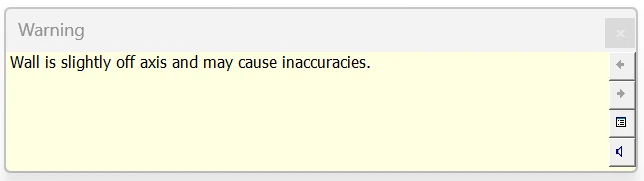
Revit 2026 warning: Wall is slightly off axis and may cause inaccuracies.
Revit 2026: a horizontal wall rotated by 0.01 degrees.
Fix

Do not rely on the warning to find all skewed geometry. Measure suspicious walls with an angular dimension against a grid: anything that is not exactly 0° or 90° (or your design angle) needs fixing.

Quick Check

Dimensions showing values like 4999.8 along a wall that should be straight point to a skew too small to see.

02Traced CAD

Pick Lines from a slightly rotated CAD file

The most common source. A DWG drawn with lines a fraction of a degree off, or imported with a small rotation, passes that rotation to every wall created with Pick Lines or snapped to its endpoints.

Fix

Measure the CAD lines with an angular dimension. Rotate the CAD import so its main axes are orthogonal before tracing, or trace with Draw instead of Pick Lines and use the CAD only as a visual reference.

Quick Check

If many walls on one floor show the warning, check the CAD background before fixing walls one by one.

03Rotate and Coordinates

Manual rotation and mixed coordinate systems

Rotating by a typed angle that is slightly wrong, rotating to match a site plan, or copying elements between models with different True North and Project North settings can all leave elements a hair off axis.

Fix

Use Rotate with snapping to an existing orthogonal reference rather than typed angles. For buildings set at an angle on site, keep the model orthogonal in Project North and rotate True North instead of rotating the geometry.

Quick Check

Switch the view between Project North and True North: the building should be orthogonal in Project North.

04Fix

Straighten elements without breaking the model

Fixing an off-axis wall by dragging its end can move hosted doors, joined walls and dimensions. Aligning to a reference keeps everything consistent.

Fix

Create or pick an orthogonal reference (a grid or reference plane), then Align (AL) the wall face or centerline to it. For lines, redraw them with angle snapping on (Manage > Snaps, angular increments).

Quick Check

After fixing, the warning disappears from Manage > Warnings; if it returns for joined walls, align those too.

Off-axis geometry often arrives with imported or exploded CAD. The guide to exploded CAD cleanup covers the other side effects.

Frequently Asked Questions

What does 'slightly off axis' mean in Revit?

The element is a tiny angle away from being horizontal, vertical or aligned with a reference. Revit warns because such near-misses cause bad joins, odd dimension values and misalignment later.

Can I ignore the slightly off axis warning?

It does not stop you working, but the geometry is still wrong. Dimensions with decimals, walls that will not join and rooms that do not close often trace back to these elements.

Why do I get the warning on walls I traced from CAD?

The CAD lines themselves are slightly rotated. Walls created with Pick Lines copy that rotation. Rotate the CAD to orthogonal or draw walls with Revit snapping instead.

Related ModelGuard guides

Stop model damage before it reaches central

Karo.ModelGuard asks for a reason or blocks exploding CAD, fake dimension overrides and deleting links, levels and grids, and writes every decision to a shared team log. It does not fix existing warnings; it stops the actions that create them.