01Unpin and Delete
Delete a pinned element on purpose
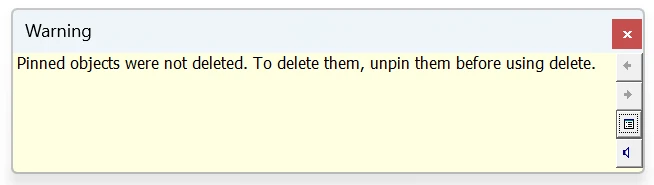
Pinning only prevents moving and deleting until the pin is removed. When a selection mixes pinned and unpinned elements, Revit deletes what it can and shows this warning for the rest, so check what actually disappeared.
Fix
Select the pinned element, click Modify > Unpin (shortcut UP) or the pin icon shown next to it, then press Delete. If you only need it gone from one view, use Hide in View instead of deleting it from the model.
Quick Check
After a mixed delete, press Ctrl+Z if more was removed than intended: Undo restores everything the delete removed.