Revit Error Explained7 min read

Revit "Imports with more than 10,000 elements cannot be exploded": fixes and better alternatives

Why Revit refuses to explode a CAD import, four ways to get under the limit, and why exploding is rarely the right move in a shared model.

Updated: October 2026·Revit 2023 - 2027
Revit error - cannot be ignored
Import Instance has 69378 elements. Imports with more than 10,000 elements cannot be exploded.
Quick answer

What it means: a Full Explode would turn the import into more than 10,000 Revit elements, so Revit stops. The number in the message is the real element count, which is often far higher than the drawing looks.

Fastest fix: try Modify > Explode > Partial Explode, then explode only the pieces you need. Better still, ask whether you need to explode at all: linking the DWG and drawing over it keeps hundreds of CAD line styles out of the model.

01Why the Count Is So High

The DWG contains far more than you see

Revit counts every curve, hatch line, text object, point and block member. Survey drawings, dense hatches, overlapping duplicate lines and blocks with detailed geometry push a drawing that looks simple past 10,000 elements. This is an error that cannot be ignored: the only choice is Cancel.
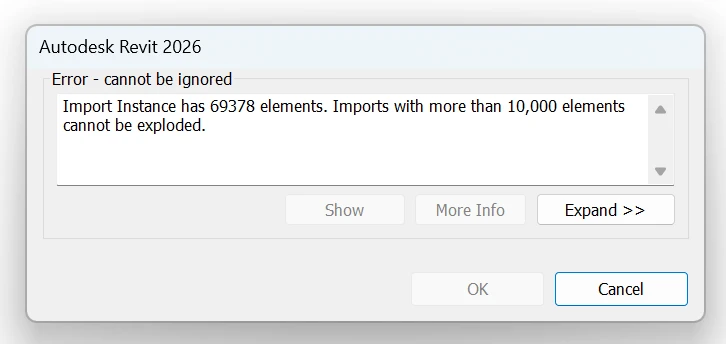
Revit 2026 error: Import Instance has 69378 elements. Imports with more than 10,000 elements cannot be exploded.
Revit 2026: Full Explode on an imported DWG with 69,378 elements.
Fix

Open the DWG in AutoCAD or a viewer and check for hatches, survey points, xrefs and duplicate linework. The count in the Revit message tells you how far over the limit you are.

Quick Check

A message count several times above 10,000 means Partial Explode alone will probably not be enough.

02Partial Explode

Explode in stages with Partial Explode

Partial Explode breaks the import one level down: blocks and nested content stay as smaller import symbols. Each of those can then be exploded separately, and each only has to stay under the limit on its own.

Fix

Select the import, Modify > Explode > Partial Explode. Select only the resulting pieces you actually need and explode them, delete the rest.

Quick Check

If a single block is still over the limit, the problem is inside that block, usually a hatch or a survey grid.

03Layers

Remove layers you do not need

Many imports bring every layer of the source file, including title blocks, hatching and annotation. Removing them before exploding is often enough to get under the limit.

Fix

Select the import and use Modify > Delete Layers to remove unneeded layers. When importing again, choose specific layers in the Import CAD dialog instead of all layers.

Quick Check

Hatch and text layers are the usual culprits. Removing them alone can cut the count dramatically.

04Clean the DWG

Clean the drawing before it reaches Revit

Cleaning in AutoCAD is faster than fighting the result in Revit. Duplicate overlapping lines, unused blocks and exploded hatches multiply the element count without adding information.

Fix

In AutoCAD, copy only the area you need to a new drawing, run OVERKILL to remove duplicates and PURGE to remove unused content, and remove hatches you do not need. Import the cleaned file.

Quick Check

Splitting a large site plan into several smaller files is a valid way to stay under the limit.

05Better Alternative

Link the DWG and draw over it instead

Every CAD layer becomes a Revit line style when exploded, along with fill patterns and text types. These spread through the model, slow it down and are tedious to purge. In a team model, one exploded survey can leave hundreds of rogue line styles.

Fix

Link the DWG as a background (Insert > Link CAD), trace what you need with Revit elements, and unload or remove the link when done. If 2D linework really has to stay, keep it inside a detail component family rather than in the project.

Quick Check

If you already exploded, check Manage > Object Styles > Lines for line styles named after CAD layers.

Already have exploded CAD in the model? The guide to purging exploded CAD line styles walks through the cleanup.

Frequently Asked Questions

What is the explode limit in Revit?

Revit does not explode an import that would produce more than 10,000 elements. The error message shows the actual count of the import instance. Linked CAD files cannot be exploded at all; only imports can.

How do I explode a large DWG in Revit?

Use Partial Explode to break it into smaller import symbols and explode only the ones you need, delete unneeded layers first, or clean and split the DWG in AutoCAD before importing.

Why is the element count so high for a simple drawing?

Hatches, text, survey points, block geometry and duplicate overlapping lines all count as separate elements. A drawing can look like a few hundred lines and contain tens of thousands of objects.

Should I explode CAD in Revit at all?

Rarely. Exploding adds CAD layers as line styles and patterns that are hard to remove. Linking the DWG and drawing over it with Revit elements keeps the model clean.

Stop model damage before it reaches central

Karo.ModelGuard asks for a reason or blocks exploding CAD, fake dimension overrides and deleting links, levels and grids, and writes every decision to a shared team log. It does not fix existing warnings; it stops the actions that create them.