Revit Error Explained6 min read

Revit "Highlighted walls overlap": fix overlapping walls and room boundaries

The four situations that create overlapping walls, which fix fits each one, and why Cut Geometry is not always the answer the warning suggests.

By(Architect & Revit API Developer)
Updated: October 2026Revit 2023 - 2027
Revit warning
Highlighted walls overlap. One of them may be ignored when Revit finds room boundaries. Use Cut Geometry to embed one wall within the other.
Related Revit warning
A wall and a room separation line overlap. One of them may be ignored when Revit finds room boundaries. Shorten or delete the room separation line to remove the overlap.
Quick answer

Fastest fix: open Manage > Warnings, expand "Highlighted walls overlap", and click Show to locate the pair. If one wall is an accidental duplicate, delete or shorten it. If both are intentional (such as a separate finish layer on a structural wall), select the finish wall and uncheck Room Bounding in Properties, or use Cut Geometry to embed curtain walls into host walls.

Why it happens: two walls occupy the same physical coordinates along their length. Because Revit cannot determine which wall bounds the space, room areas become inaccurate and wall materials double-count in schedules.

01Drawn Over

A wall drawn over an existing one

Redrawing a wall without deleting the old one, extending one wall into another along the same line, or tracing a CAD background where a wall already exists all stack two walls on the same axis.
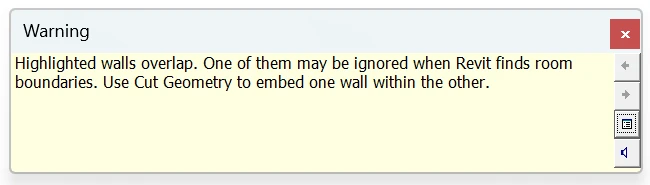
Revit 2026 warning: Highlighted walls overlap. One of them may be ignored when Revit finds room boundaries.
Revit 2026: a 3 m wall drawn on top of a 5 m wall along the same line.
Fix

Select one of the pair from the warning, check which wall carries doors, windows and tags, and delete or shorten the other one. Use Join or Trim/Extend to make the remaining walls meet cleanly.

Quick Check

If doors are hosted in one wall only, that is the wall to keep.

02Finish Walls

Finish or lining walls modeled as separate walls

Plaster, cladding or lining modeled as a thin wall against a structural wall overlaps it when either is drawn by its centerline or the location lines do not match. Both walls are intentional, but only one should bound the room.

Fix

Turn off Room Bounding on the finish wall so the room uses the structural wall, or set the room to measure to the finish face as your standard requires. Draw finish walls with Location Line set to Finish Face so they sit against the core instead of inside it.

Quick Check

If the overlap is a few millimetres along the full length, it is a location line issue, not a duplicate.

03Curtain Walls

Curtain walls placed in a basic wall

A curtain wall placed along a basic wall overlaps it unless it is embedded. Embedding cuts an opening in the host wall instead of leaving two walls in the same place.

Fix

Select the curtain wall type and check that Automatically Embed is on, or use Cut Geometry to embed the curtain wall in the host. Alternatively split the basic wall and leave a gap for the curtain wall.

Quick Check

If the basic wall shows no opening where the curtain wall is, it is not embedded.

04Room Separation Lines

Room separation lines drawn on top of walls

Room separation lines along a wall duplicate the boundary and trigger the related warning about a wall and a room separation line. They are often left over from early massing or copied from another level.

Fix

Delete or shorten the room separation line so it only spans openings where there is no wall. Keep separation lines for open-plan boundaries, not along walls.

Quick Check

Select all room separation lines in a plan (right-click > Select All Instances > Visible in View) and check which ones sit on walls.

Overlapping walls are a common reason rooms report wrong areas or fail to enclose. If a room shows Not Enclosed, see Room is not in a properly enclosed region.

Frequently Asked Questions

Does the highlighted walls overlap warning matter?

Yes, if the walls bound rooms. Revit ignores one of the walls when finding room boundaries, so room areas, volumes and schedules can be wrong. Duplicated walls also double count in wall quantities.

Should I always use Cut Geometry as the warning suggests?

Only when one wall should truly be embedded in the other, such as a curtain wall in a basic wall. For duplicates, delete the extra wall. For finish walls, switch off Room Bounding on the finish layer.

How do I find overlapping walls in a large model?

Open Manage > Warnings, expand 'Highlighted walls overlap' and use Show to jump to each pair. You can also export the warnings to HTML to track them over time.

Related ModelGuard guides

Stop model damage before it reaches central

Karo.ModelGuard asks for a reason or blocks exploding CAD, fake dimension overrides and deleting links, levels and grids, and writes every decision to a shared team log. It does not fix existing warnings; it stops the actions that create them.